
How do I control what a bot can do without asking me?
Bots read freely but ask before changing things. Use the bot's details panel to set its level, allow apps or actions, or skip approvals.
On this page
By default a bot reads your files and apps freely but asks you before it changes or sends anything. You decide how much it may do on its own in the bot’s details panel, under Asking before it acts and What it may do.
Open the bot’s settings
- Click the bot in the bot list.
- Click the panel button at the top right of the chat to open its details. The Details tab opens.
- Scroll to Asking before it acts.
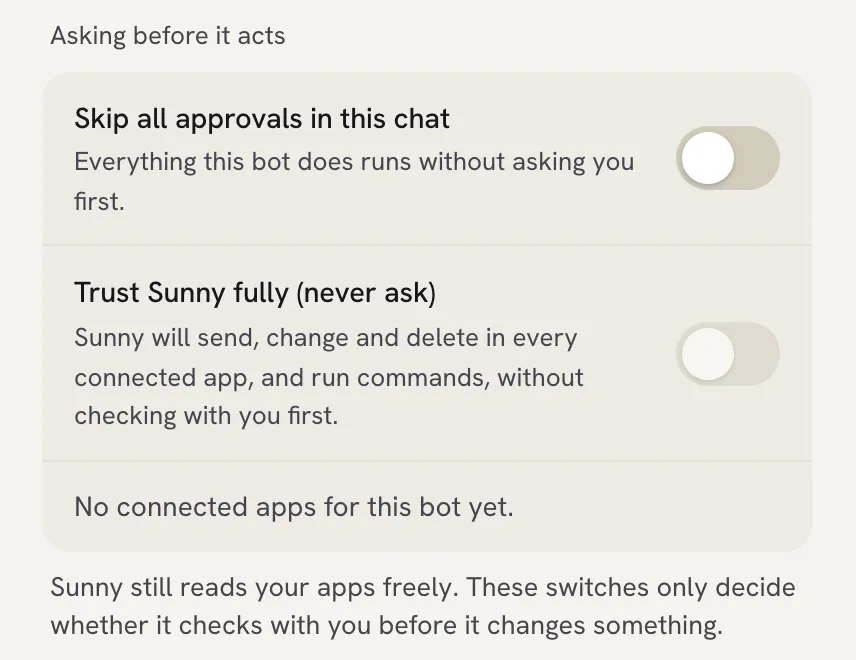
Your options, from most careful to least
- Answer each request in the chat. When the bot pauses, click Allow once, Always allow or Not now.
- Allow one connected app. Each app the bot uses has a switch. Off means “Reads freely. Asks before it changes things.” On means “Allowed to do anything here without asking”.
- Skip all approvals in this chat. Everything this bot does runs without asking you first. You can also flip the Skip approvals switch at the top of the chat. A strip in the chat reminds you while it is on.
- Trust
fully (never ask). The bot sends, changes and deletes in every connected app, and runs commands, without checking with you first. Use this only for bots you fully trust.
Undo an “Always allow”
Actions you allowed with Always allow are listed under Always allowed. Click Remove next to one, and the bot asks you again next time.
Set what the bot may do at all
Each bot has a level that limits what it can do, whatever you approve:
- Look only: reads files and apps. Never changes anything.
- Standard: reads, and writes files in its own folder. Asks before anything else.
- Trusted: can also run commands on this computer. Still asks before sending anything.
To change it:
- In the details panel, click … at the top, then Edit.
- Under What it may do, pick Look only, Standard or Trusted.
- Click Save.
Routines
A routine runs with no one watching, so it only does what that task allows. If a routine needs your OK, it pauses and the chat shows Allow for this task and Not now. To let a routine run without stopping, turn on Run without asking (approve everything) for it on the Routines page.
Related articles
Did this answer your question?
Thanks for letting us know.Thanks, we will improve this article. Want a hand right now?
Still need help?
Chat with us and get an answer in a few minutes.