
How do I chat with a bot?
On this page
Click a bot in the list on the left, type your message in the box at the bottom, and press Enter. The bot answers in the chat and asks you before it changes or sends anything.
Send a message
- In the bot list on the left, click the bot you want.
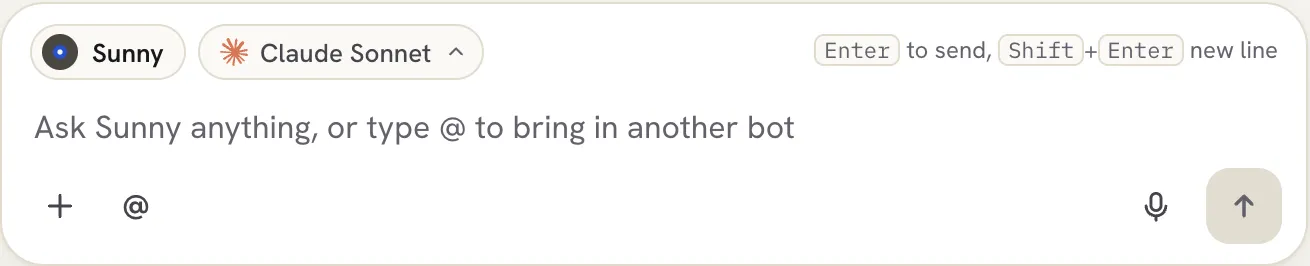
- Click the message box at the bottom. It says “Ask
anything, or type @ to bring in another bot”. - Type your message. Press Shift+Enter for a new line.
- Press Enter or click the send arrow.
 Not sure where to start? A new chat shows starter questions such as What can you do for me? and What do you need from me to do a better job? Click one to send it.
What the buttons in the message box do
- + attaches files, up to 10 at a time. This works in the Locul desktop app.
- @ brings another bot into the conversation.
- The microphone lets you dictate instead of typing.
- The AI model chip (for example Claude Sonnet) shows which AI answers. Click it to pick another.
- Think appears for some open models. Turn it on to let the model reason before answering.
While the bot works
You see “
When the bot asks for permission
Before a bot changes or sends something, it pauses and shows a card: “
- Allow once: allow this one action.
- Always allow: allow this kind of action from now on.
- Allow all
actions : shown for connected apps. Allows everything in that app. - Not now: do not do it.
To change these choices later, see Control what a bot can do without asking.
When the bot asks you to choose
Sometimes a bot shows options with Choose one or Choose all that apply. Pick your answer and click Go with this, or click Something else to type your own.
Find an old chat
Click the search button at the top of the bot list, or press Cmd+K (Mac) or Ctrl+K (Windows). Search looks through bot names and messages.
Troubleshooting
- A banner says your bots need Claude Code. Click Set up. See Choose the AI that runs your bots.
- “The server is busy. You’re in line…” Wait, or use the option shown to run the chat on a model on your computer.
- A message failed. Click Try again on the error card.
Related articles
Did this answer your question?
Thanks for letting us know.Thanks, we will improve this article. Want a hand right now?
Still need help?
Chat with us and get an answer in a few minutes.