
How do I change a bot's name, instructions and files?
Open the bot's details panel, click ... then Edit to change its name, job, level and instructions. Use the Files tab to browse and edit its files.
On this page
Open the bot’s details panel and click … > Edit to change its name, job, what it may do and its instructions. To work with the files in its folder, use the Files tab.
Edit a bot’s details
- Click the bot in the bot list.
- Open its details panel with the panel button at the top right of the chat, or click the bot’s name at the top of the chat.
- Click … at the top of the panel, then Edit.
- Change any of these:
- Name
- What it does
- What it may do: Look only, Standard or Trusted
- Instructions: how the bot should do its work
- Click Save.
The bot’s mark (its picture) is built from its team and its job, so it updates when you rename the bot.
Browse and edit its files
Every bot has its own folder with its instructions, memory and strategy files, plus anything it makes.
- In the details panel, click the Files tab.
- Click Open folder to browse and edit the files right in Locul. Changes save as you type. Click Back when you are done.
- To open the folder on your computer instead, click Show in Finder (Mac) or Show in File Explorer (Windows).
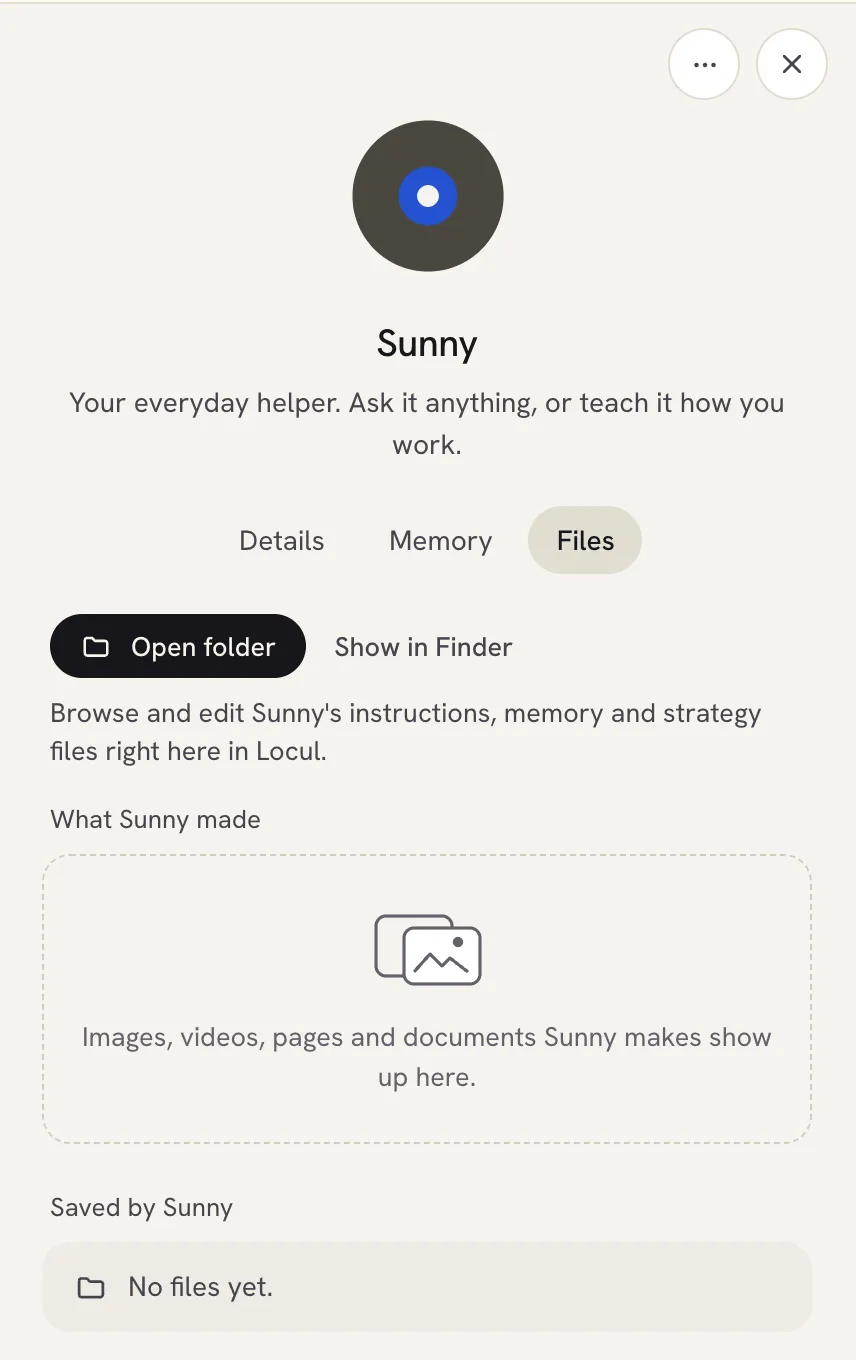 The Files tab also lists What
See what a bot remembers
Click the Memory tab. See See and edit what a bot remembers.
Other settings in the Details tab
Click About on the Details tab to see:
- Can do: the bot’s level.
- The AI the bot runs on.
- Live session: when on, chats open in a Claude Code terminal you can watch. When off, each chat runs in the background.
- Folder: click Open to open the bot’s folder.
Delete a bot
- Click … at the top of the details panel, then Delete.
- Click Delete to confirm.
Its chats stop and its folder moves to the bots trash, so you can still get it back. Your everyday helper bot cannot be deleted.
Related articles
Did this answer your question?
Thanks for letting us know.Thanks, we will improve this article. Want a hand right now?
Still need help?
Chat with us and get an answer in a few minutes.