
How do I connect apps like Gmail or Notion for my bots?
Your bots use the apps you connected in Claude. Add Gmail, Calendar or Notion in Claude, then click Refresh in Settings, Connected apps.
On this page
Your bots use the apps you connected in Claude, like Gmail, Calendar and Notion. Add or remove them in Claude, and they show up in Locul under Settings > Connected apps.
Add an app
- Connect the app in Claude (for example Gmail, Google Calendar or Notion) and sign in to it there.
- In Locul, click Connect apps at the bottom of the left rail.
- Under Apps your bots can use, click Refresh.
The app appears with the number of actions your bots can take in it.

Remove an app
Remove it in Claude, then click Refresh in Locul.
What the statuses mean
- N actions: ready. Your bots can use it.
- Needs you to sign in, in Claude: open Claude and sign in to that app again.
- Not connected: the app is added in Claude but not connected. Finish connecting it in Claude.
Share apps between your AI apps
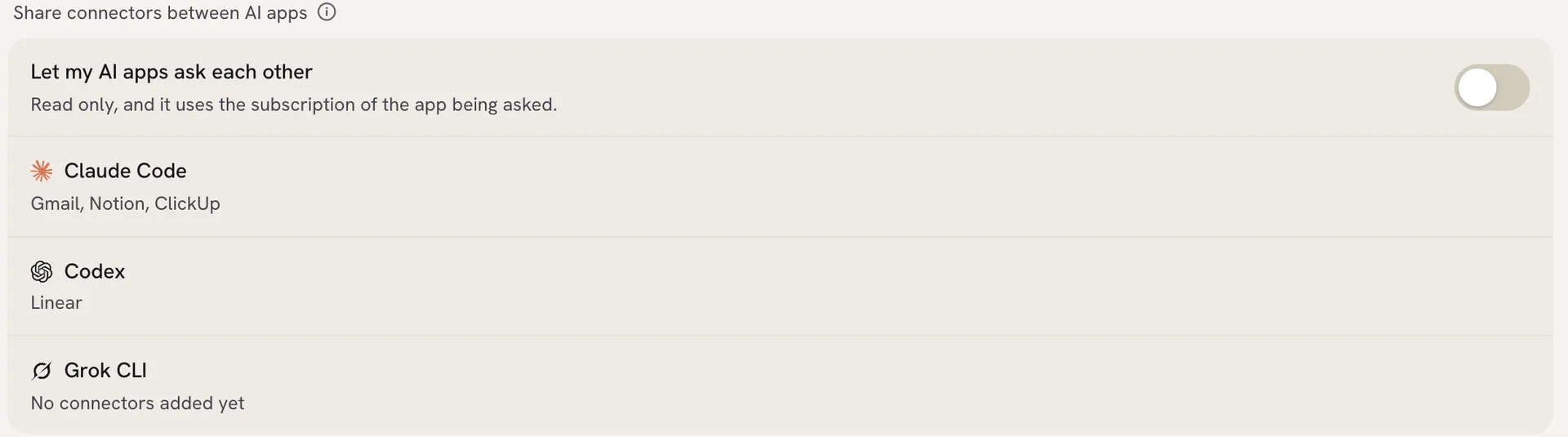
Each AI uses its own connected apps. If a bot runs on Codex but the app you need is only connected in Claude, turn on sharing:
- On the same page, find Share connectors between AI apps.
- Turn on Let my AI apps ask each other.
This is read only, and it uses the subscription of the app being asked. The list shows which apps each of Claude Code, Codex and the Grok CLI has.
Choose whether a bot asks first
Bots read your apps freely. To decide whether a bot checks with you before it sends, changes or deletes something, open the bot’s Details and use the switches under Asking before it acts.
Related articles
Did this answer your question?
Thanks for letting us know.Thanks, we will improve this article. Want a hand right now?
Still need help?
Chat with us and get an answer in a few minutes.