
How do I choose the AI that runs my bots?
Set a default for all bots in Settings, AI model. Change one chat from the model menu under it, or one bot with Thinks with in its Details.
On this page
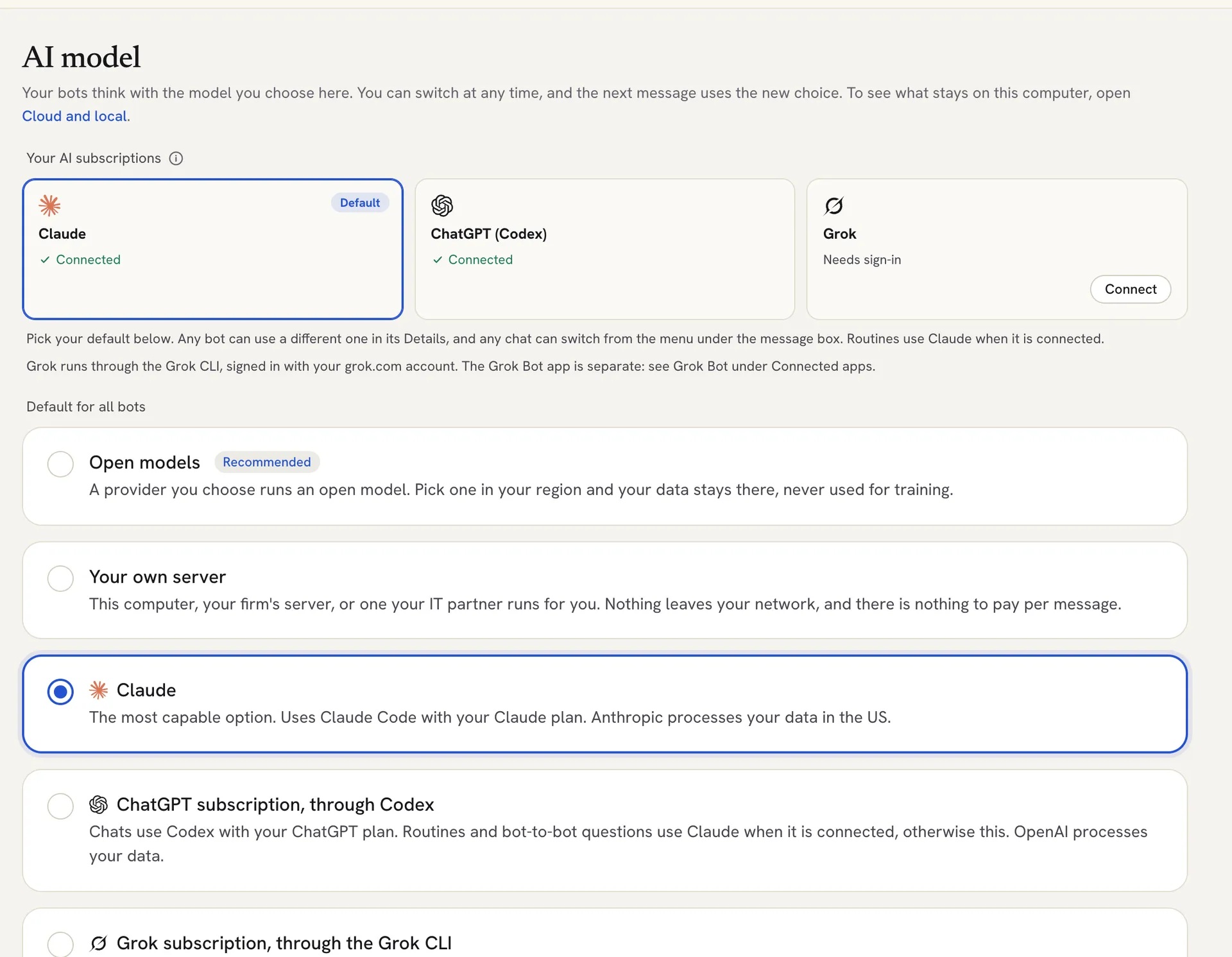
Set the default for all your bots in Settings > AI model. You can also switch the AI for one chat, or give one bot its own default.
A bot picks its AI in this order: what you picked in that chat, then that bot’s own default, then your default for all bots.
Set the default for all bots
- Click the Settings gear at the bottom of the left rail.
- Under Bots, click AI model.
- Under Default for all bots, choose one:
- Open models: a provider you choose runs an open model, with your own access key.
- Your own server: this computer, or a server your firm or IT partner runs.
- Claude: uses Claude Code with your Claude plan.
- ChatGPT subscription, through Codex: uses Codex with your ChatGPT plan.
- Grok subscription, through the Grok CLI: uses the Grok CLI with your Grok plan.
- Follow the panel that opens to finish setup. The next message uses the new choice.
At the top of the page, Your AI subscriptions shows each subscription as Connected, Needs sign-in or Not installed.
 ## Switch the AI for one chat
- Under the message box, click the model name (for example Claude Sonnet).
- Pick an AI and model from the list.
Switching keeps the conversation: the new AI gets a short summary and carries on. To make this choice stick for the bot, tick Always use this for this bot. Model settings opens the AI model page.

Give one bot its own AI
- Open the bot and click its name at the top of the chat.
- In the Details tab, open About.
- Change Thinks with.
Good to know
- With ChatGPT or Grok as your choice, chats use that AI. Routines and bot-to-bot questions use Claude when it is connected.
- Each AI uses its own subscription and its own connected apps.
- Under Default model for each AI, you can set which model each AI starts with.
Troubleshooting
“Codex isn’t installed on this computer yet” or the Grok version of this message: install Codex, or the Grok CLI from x.ai/cli, sign in once in your terminal, then choose it again.
“Needs Codex sign-in” or “Needs Grok sign-in”: open your terminal, type codex login (or grok login) and press Enter.
Claude does not answer: on the AI model page, under Connection check, click Check again. If Claude Code is missing, click Get Claude Code. If you are signed out, open your terminal, type claude, and sign in.
Related articles
Did this answer your question?
Thanks for letting us know.Thanks, we will improve this article. Want a hand right now?
Still need help?
Chat with us and get an answer in a few minutes.