
How do I create my account and sign in?
Open Locul, enter your email and type the 6-digit code we send you, or use Google. The same steps create a new free account or sign you in.
On this page
Open Locul and sign in with your email or Google. If you do not have an account yet, the same steps create a free one. No password is needed.
Sign in with your email
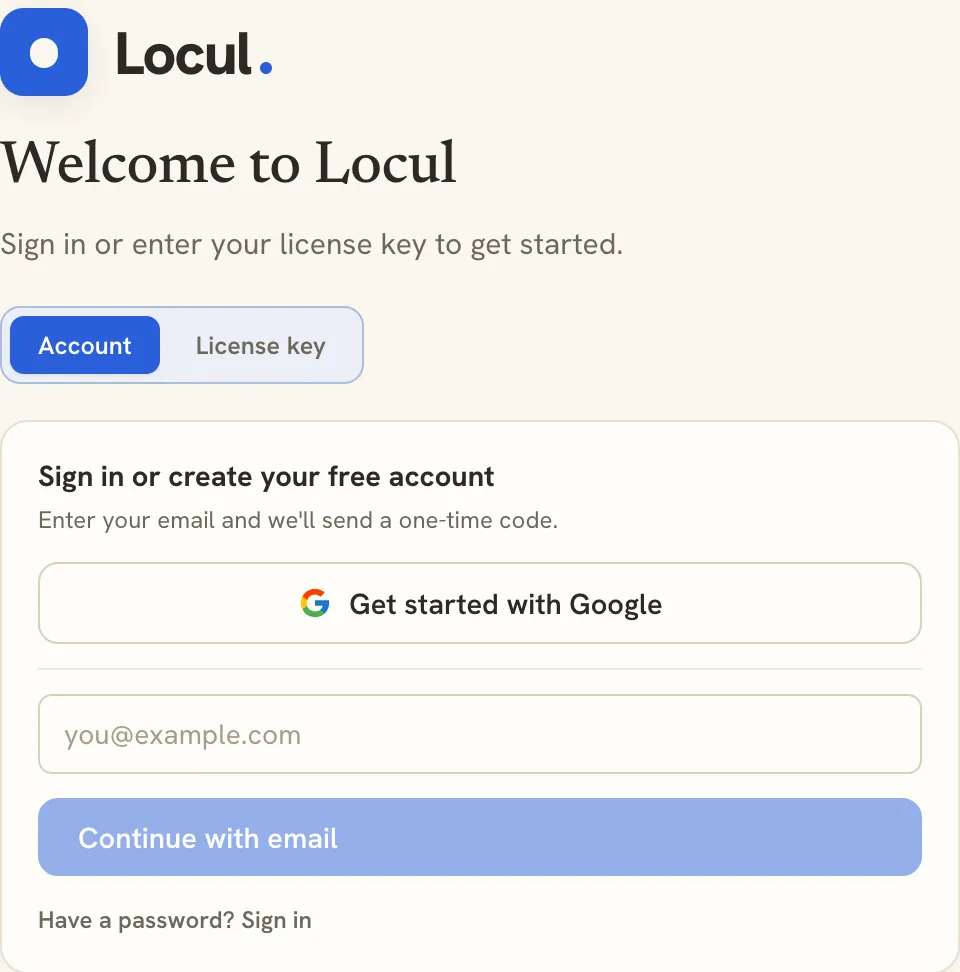
- Open Locul. You see Welcome to Locul with two tabs, Account and License key. Stay on Account.
- Type your email address.
- Click Continue with email. We email you a one-time code.
- Type the 6-digit code into the boxes.
- Click Verify and continue.
 Did not get the code? Click Resend code, or click Use a different email to start over.
Sign in with Google
- Click Get started with Google.
- Finish signing in to Google in your browser. Locul shows “Waiting for Google…” until you are done, then continues on its own.
Sign in with a password
If you set a password on your Locul account, click Have a password? Sign in, type your password and click Sign in.
Use a license key
A license key is a code that unlocks Locul. You get one when you buy Locul, or from your team admin or a teammate.
- Click the License key tab.
- Paste your key. It looks like
LOCUL-XXXXXX-XXXXXX-XXXXXX. - Click Activate license.
Sign in on the Account tab first, so your license is tied to your account and team seat.
Sign out
- Click Settings (the gear at the bottom left), then Account.
- Click Sign out.
Troubleshooting
- “That code did not match. Try again.” Check the newest email from Locul and type the code again, or click Resend code.
- “That email and password didn’t match.” Use the one-time code instead: leave the password screen and click Continue with email.
- “We don’t recognize that key.” Check the key for typos.
- “Every seat on this license is in use.” Ask your admin to free a seat.
- “This license has been revoked.” Email [email protected].
- You paid but see no plan: sign in with the same email you used at checkout. See Plan not showing after you paid.
Related articles
Did this answer your question?
Thanks for letting us know.Thanks, we will improve this article. Want a hand right now?
Still need help?
Chat with us and get an answer in a few minutes.