
Plan not showing after you paid
Your plan belongs to the email you checked out with. Sign in to Locul with that email, or use Claim a purchase in Settings, Account to move it.
On this page
Your plan belongs to the email you used at checkout. Sign in to Locul with that same email, or use Claim a purchase to move the plan to the account you are signed in with.
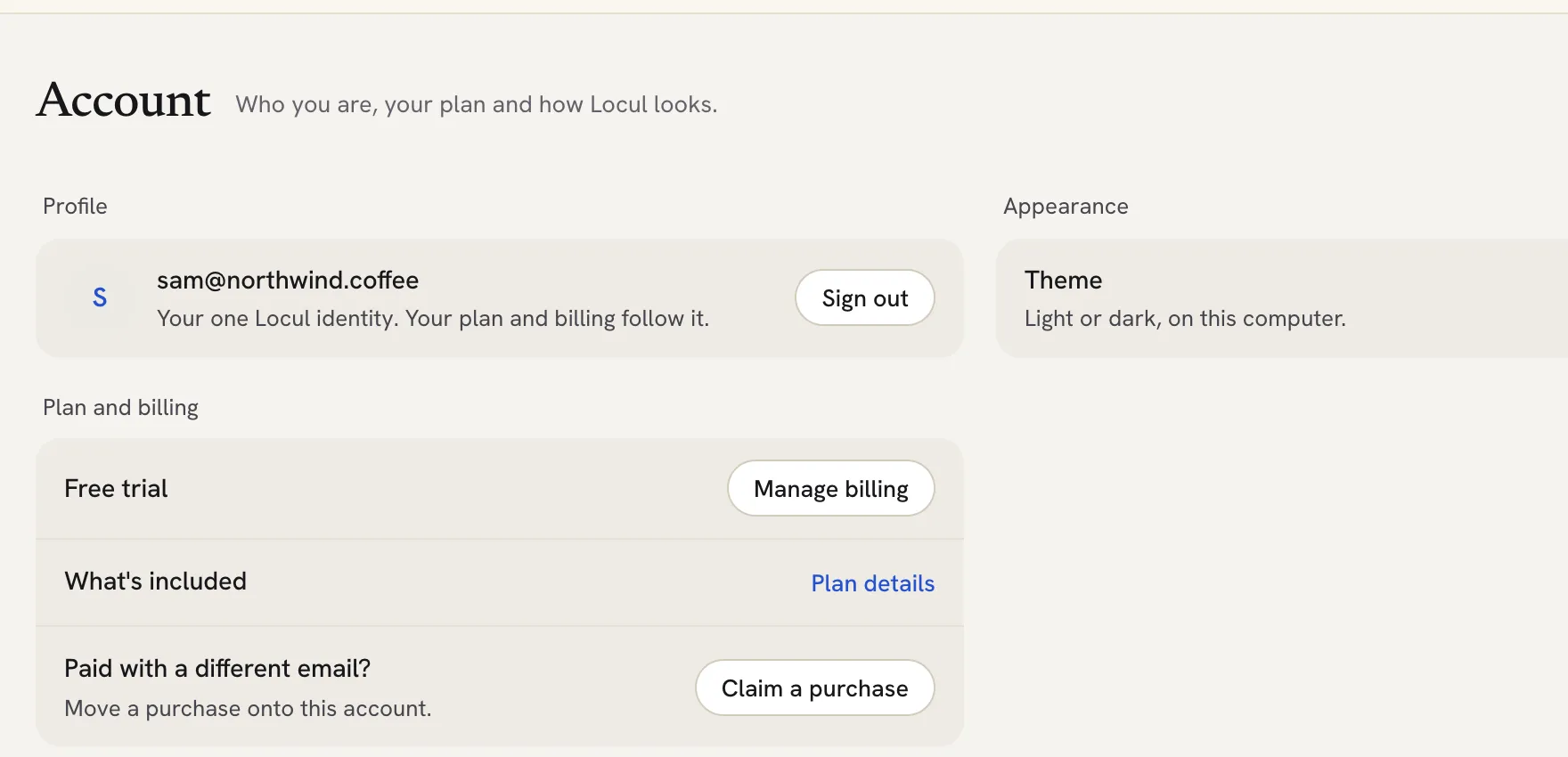
Check which email you are signed in with
- Click the Settings gear at the bottom of the left rail.
- Click Account.
- Look at the email at the top. Compare it with the email on your payment receipt.
If they match, close the window and come back to Locul. The plan refreshes when the app comes back into focus. If it still shows the old plan, quit Locul and open it again.
Sign in with the email you paid with
- In Settings > Account, click Sign out.
- Sign in again with the email from your payment receipt.
Your plan unlocks on its own once you sign in with that email.
Or move the purchase to your current account
Use this if you want to keep the account you are signed in with.
- In Settings > Account, under Paid with a different email?, click Claim a purchase.
- Enter the Email you bought with and click Send code.
- Enter the code sent to that inbox and click Verify and claim. If it did not arrive, click Resend code.
You will see Purchase claimed. Your plan now follows this account.
 ## If you have a licence key
On the screen that says Locul needs a plan, click Already bought a licence? and enter your key (it starts with LOCUL-).
Still not showing
Email [email protected] from the email you signed in with. Include the email you paid with and, if you have it, your receipt. The team checks and fixes it.
Related articles
Did this answer your question?
Thanks for letting us know.Thanks, we will improve this article. Want a hand right now?
Still need help?
Chat with us and get an answer in a few minutes.